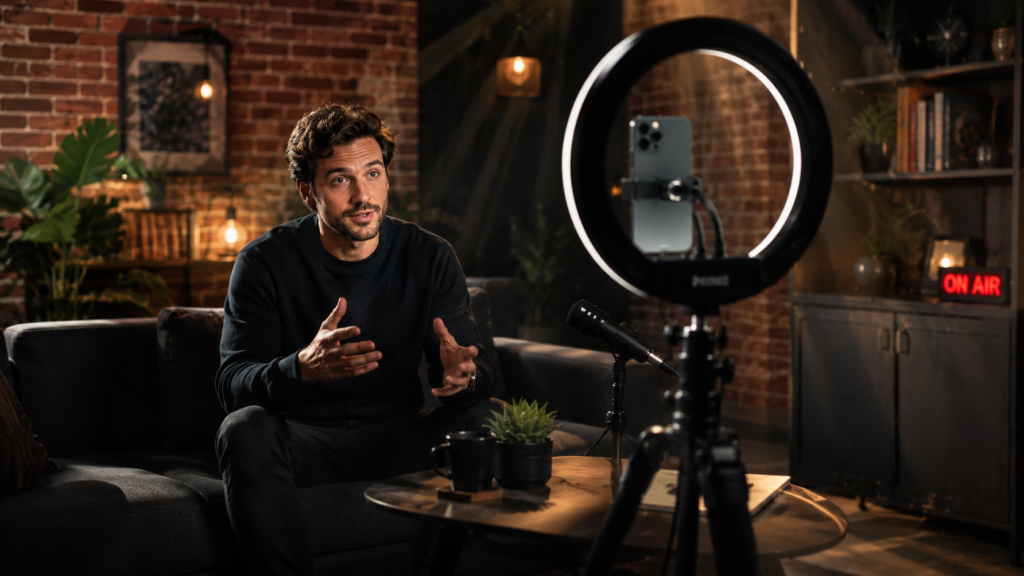
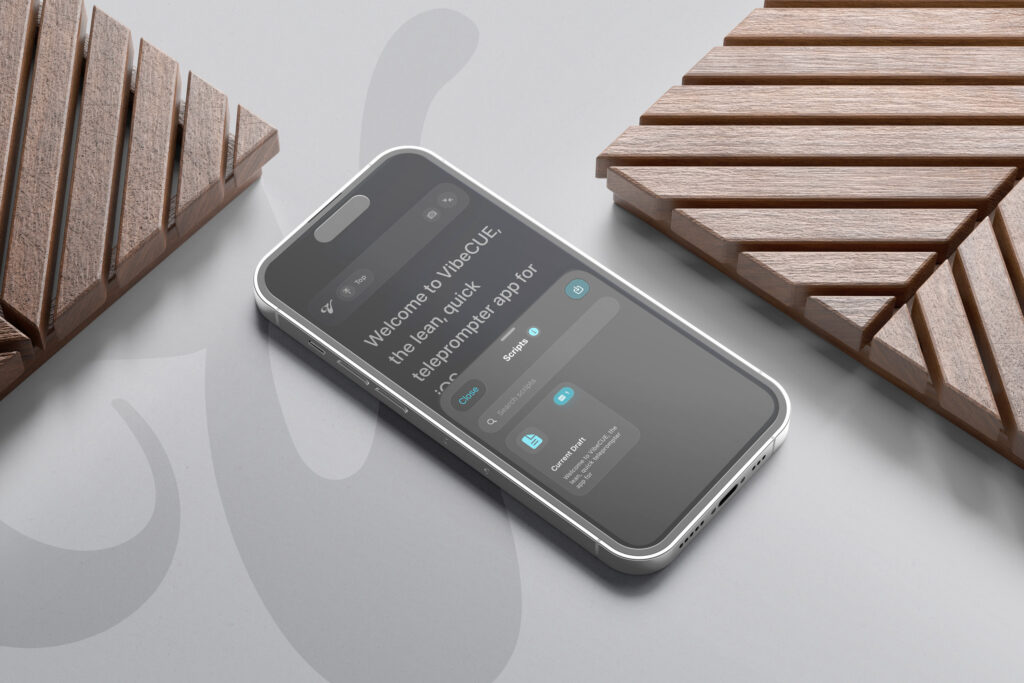
Can You Use an iPhone as a Teleprompter?
A Simple Setup That Actually Works Yes, you can use an iPhone as a teleprompter, and for a

Install now to take advantage of our limited time launching prices.
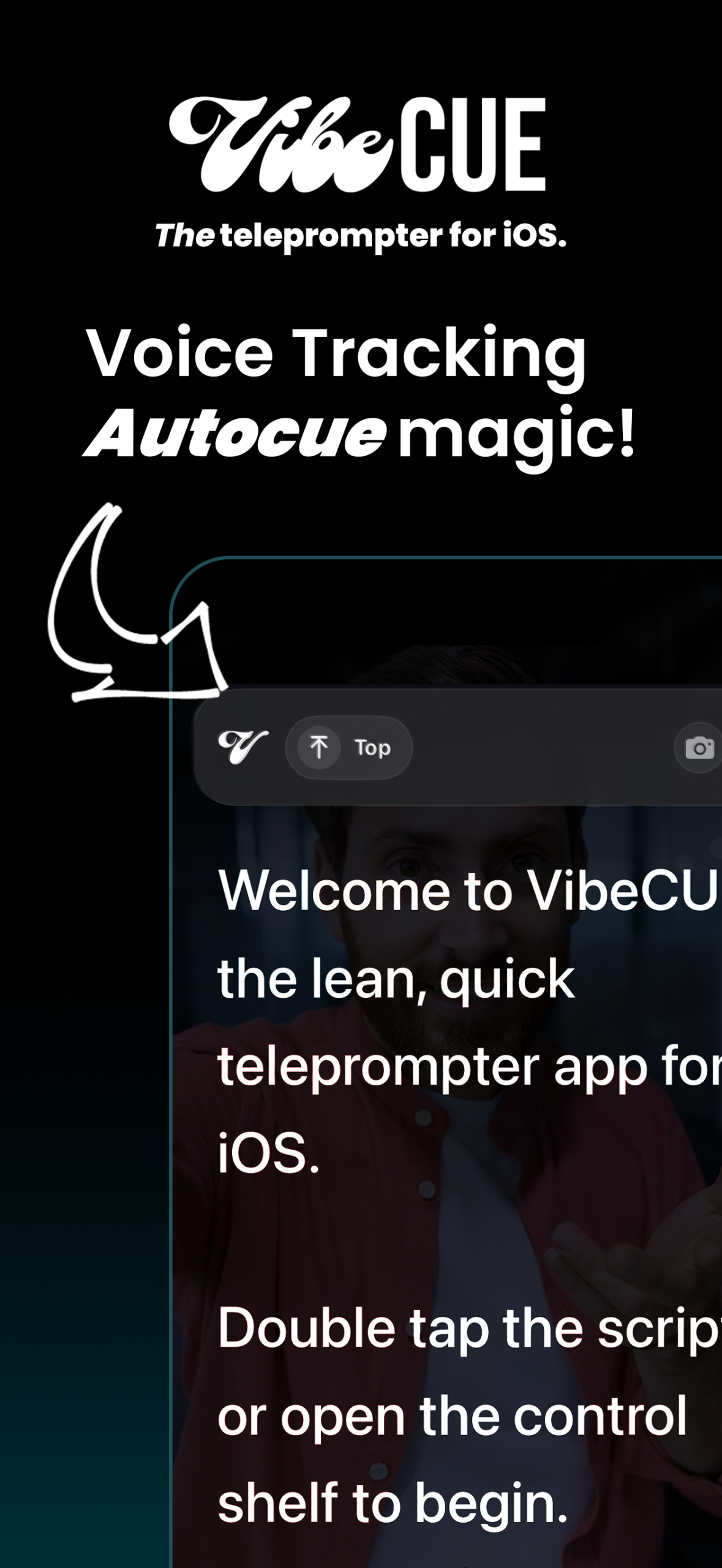
Read naturally while VibeCue follows your voice and moves the script with your speech. No stiff fixed-speed scrolling. No teleprompter panic.
We’ve built Vibe Cue around the user, shocking right!! – But everybody speaks differently where sometimes being against the clock is counter productive to your natural flow. We have removed this trap.
Don’t worry we have all the regular, traditional tools you’d expect from an autocue too!
Import, write, search, edit, delete and export scripts from one clean local library, with TXT, PDF and RTF support built for fast content prep.
Every session starts with a script. Learn more about our Hub here.
Vibe Cue iOS is designed for content creators, public speakers, vlog studios and anyone who needs to hit clean, confident takes without a clunky production setup getting in the way. It keeps the teleprompter experience sharp, stripped-back and ready to move, so you can load your script, frame the shot, settle into the rhythm and roll straight into the take.
The toolset is lean but powerful, with script import, library management, readable prompting, camera-ready preview controls and creator-friendly settings all kept tight, useful and out of your path.
Whether you are shooting socials, recording course content, talking to camera or running a compact studio setup, Vibe Cue keeps the words flowing, the screen clear and the whole session moving with pace, control and zero dead weight.
iOS 26+
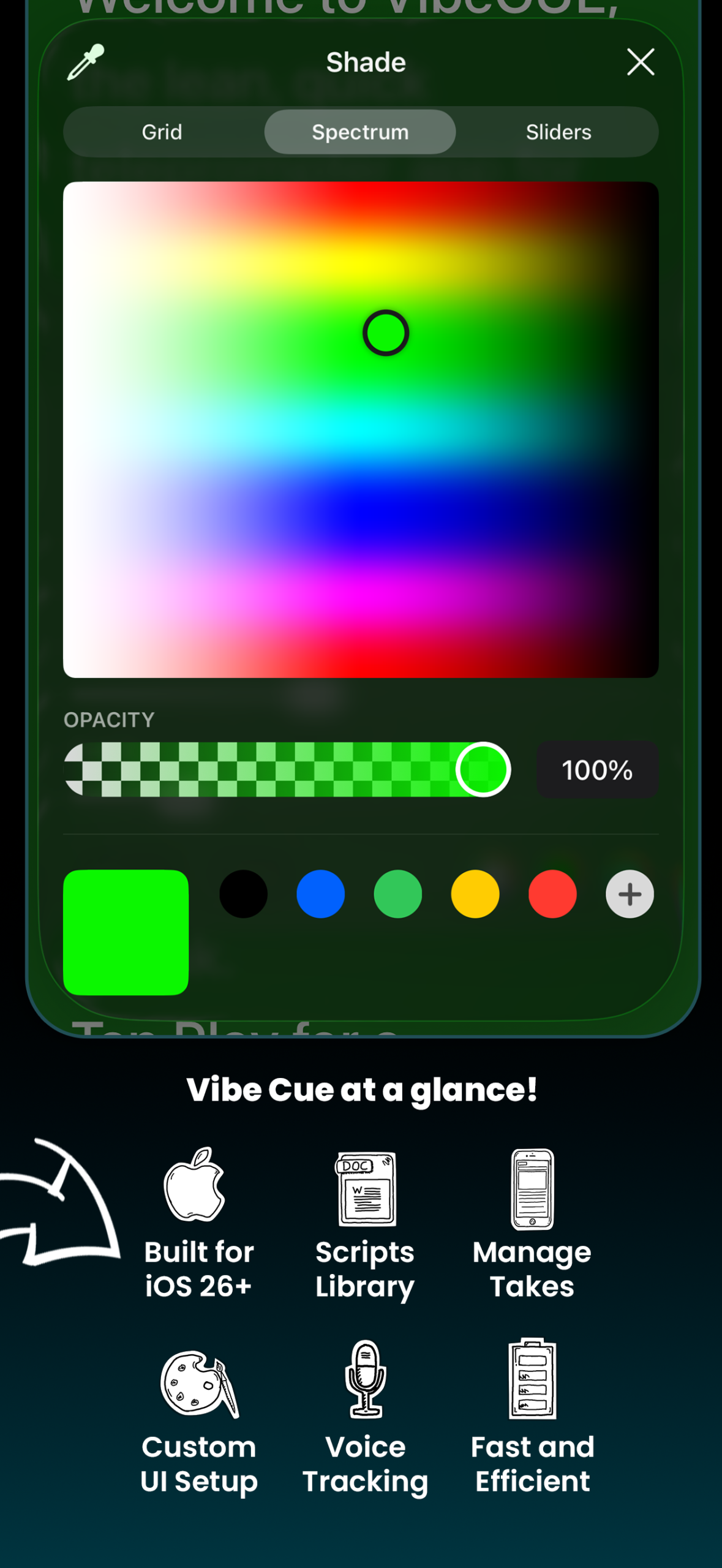
Change the look, style, colours and opacity of your script window for the smoothest session.
Import, create and edit your scripts to use in. aVibe! Session, each 'Take' you complete is neatly filed along with your script for edit or review!
VibeCue iOS is designed from the ground to listen and track your script as you speak.
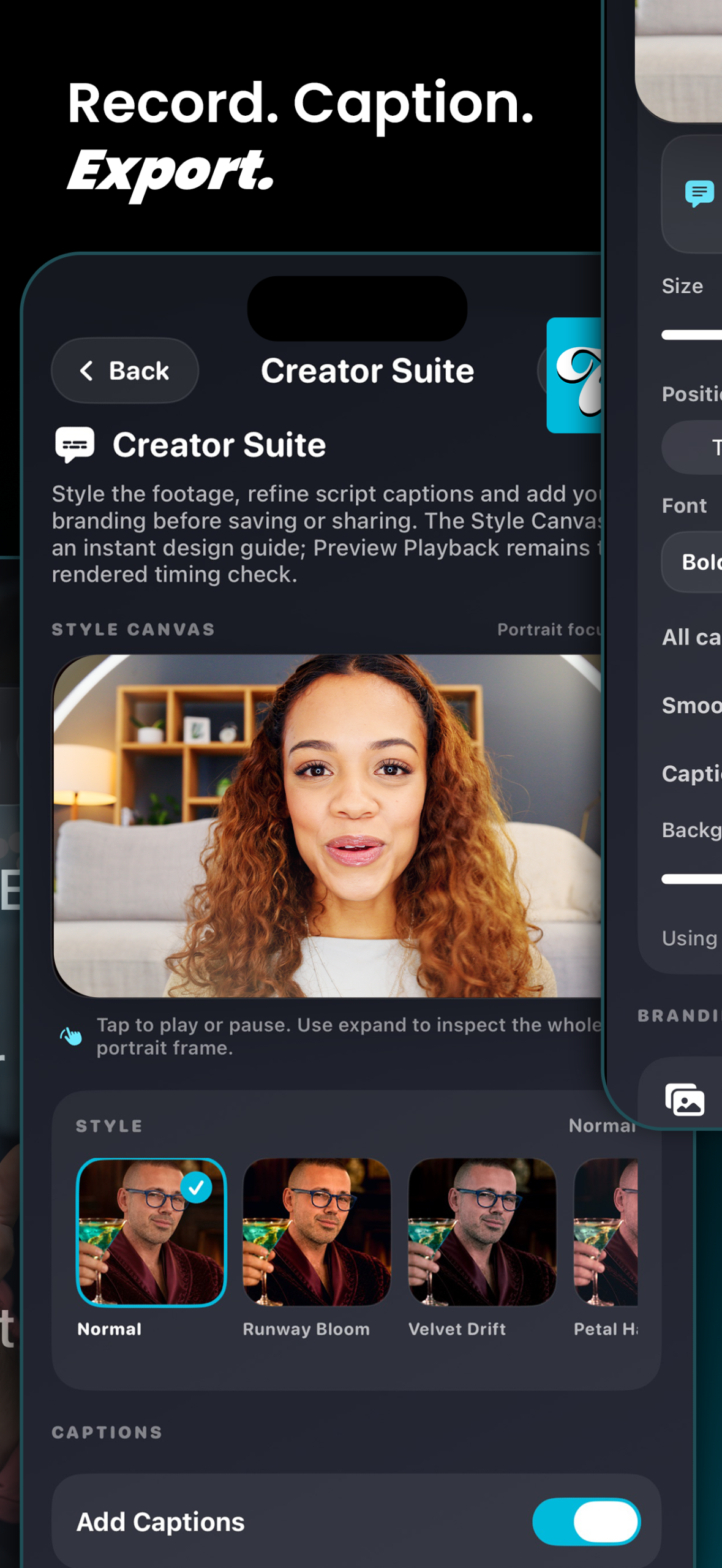
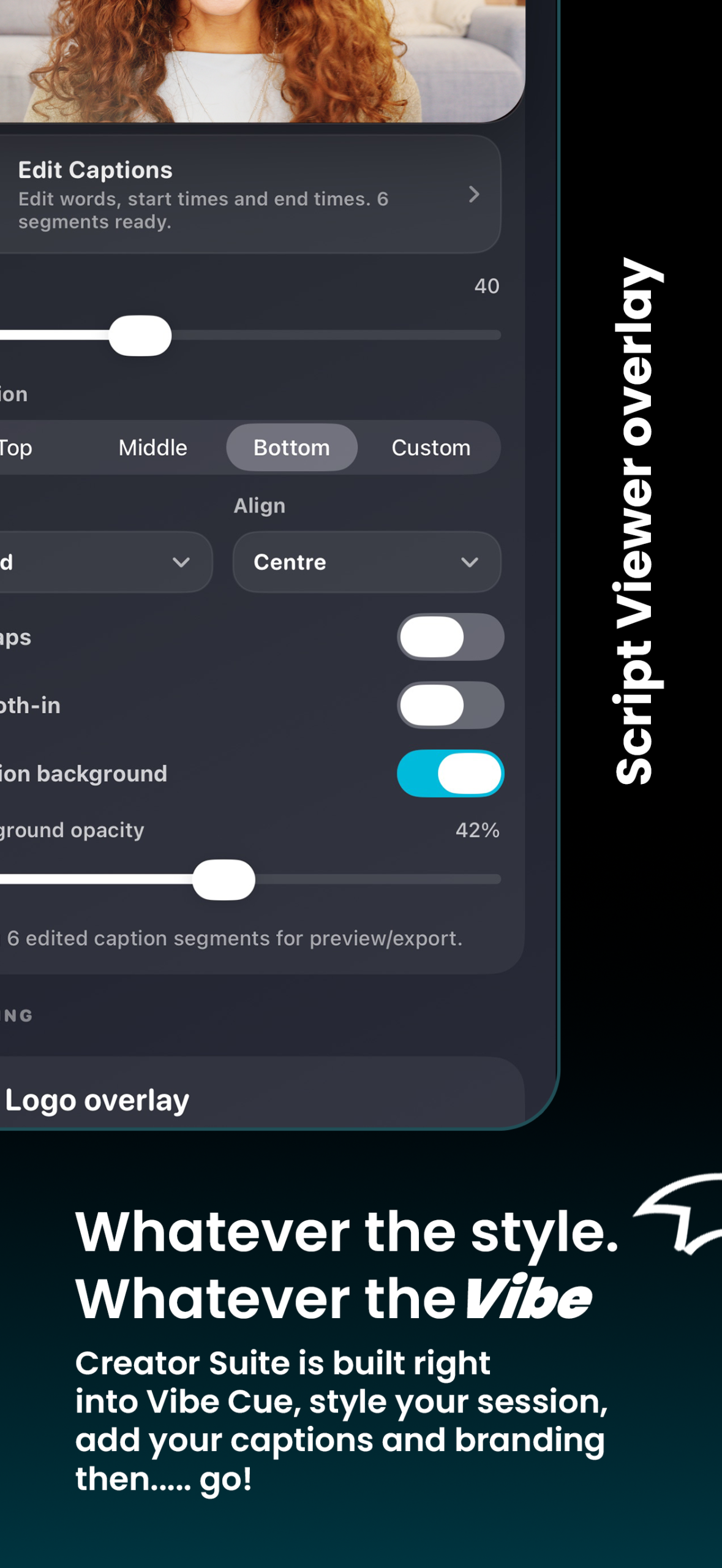
Shoot and record your session then, when time is critical, add captions, change styles and export for posting!
Add captions, logo overlays, preview playback and polished quick exports when time, Wi-Fi, kit or editing resources are running thin.
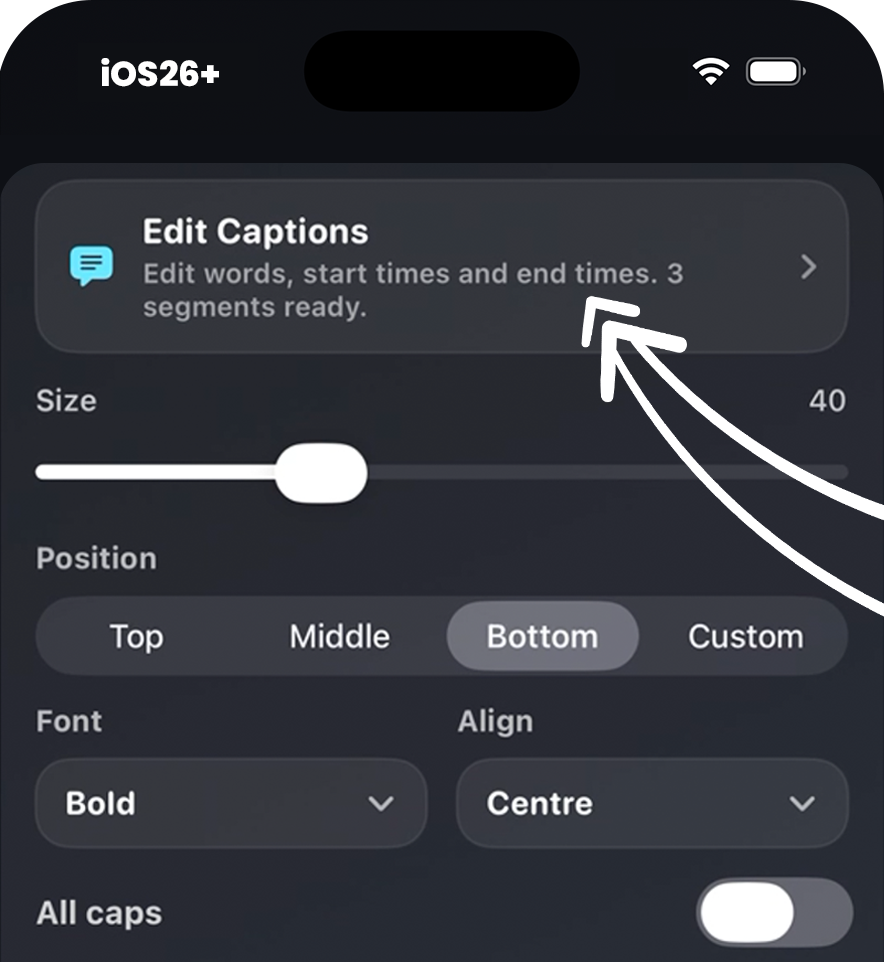
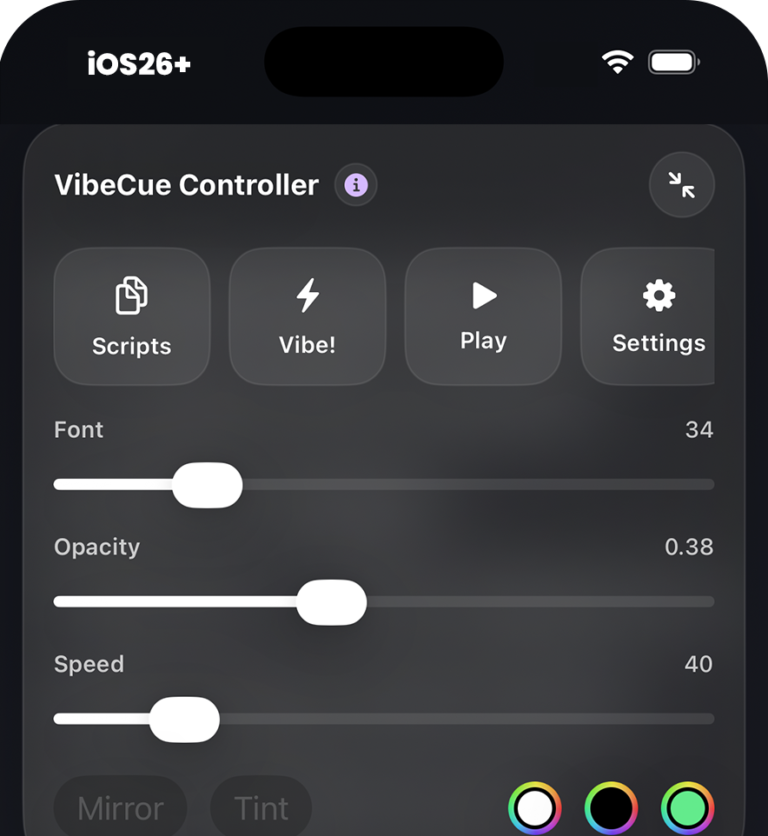
Tune font size, speed, opacity, colours, mirrored text and overlay settings so the teleprompter fits your eyes, setup and recording style.
Customise all aspects of your Vibe! Session to crank comfort to 11!
Have you recorded a session, edited it or just saved it out for later? The simple, sleak Takes system has your back!
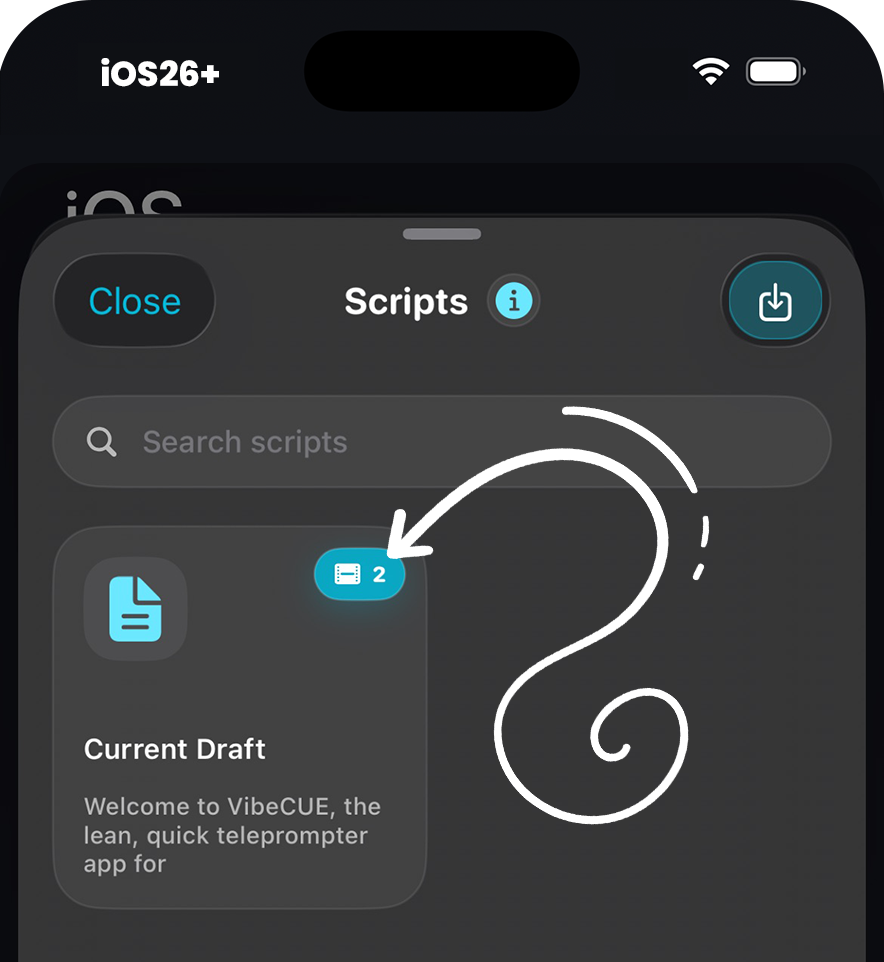
Takes are stored directly in your Scripts Hub so everything is ‘Home Edit’ neat.
Record your take, preview it before saving, then send it on or export it when you are happy. Clean capture without accidental camera-roll clutter.
Development does not stop once Vibe Cue Launches. Take a look at our features in development for post-launch updates!
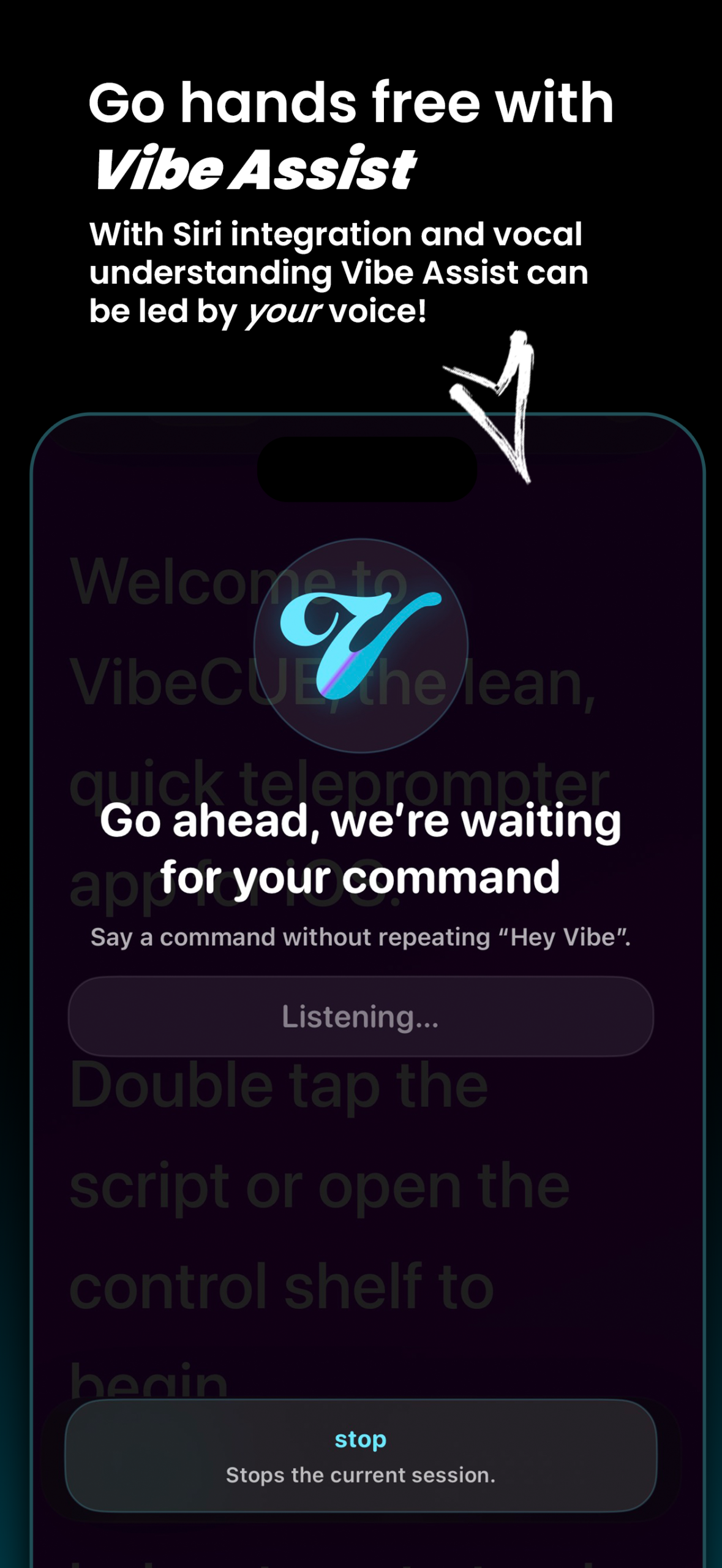
Voice handling is coming to Vibe Cue. Engage and interact directly with the app and its features with your voice. Hands-free control for when you aren't able to handle your device. Coming soon to Vibe Cue iOS.
Use any bluetooth connected accessory to control Vibe Cue. Need control of your session in new, comfortable ways? Use gamepads, clickers, remotes and controls to take charge of your experience.
Vibe! is Vibe Cue’s speech-following teleprompter mode. It listens as you read, tracks your position in the script and moves the words with you. Speed up, slow down, pause or improvise without watching your script sail away without you.
Yes. Timed Scroll moves your script at a consistent, adjustable speed for a more traditional teleprompter workflow. Begin immediately or add a 5, 10 or 15-second countdown before scrolling starts.
Yes. Record directly inside Vibe Cue while using either Vibe! or Timed Scroll. Choose portrait or landscape recording, adjust the recording quality, mirror the output and use Cinematic capture on supported devices.
No. Vibe! and Timed Scroll can both run without recording. That makes Vibe Cue suitable for rehearsals, presentations, livestreams and studio sessions being captured by another camera.
Yes, considerably. Adjust your font size, scrolling speed, text colour, background shade and overlay opacity. You can also customise the tracked-word colour or switch highlighting off for a cleaner reading display.
Yes. Mirror the script horizontally for use with reflective teleprompter rigs while retaining access to Vibe!, Timed Scroll and the session controls. No backwards-reading qualification required.
Vibe Cue opens a dedicated Recording Preview. Watch the take, flip the video when required, save it to Photos, share it through iOS or move it directly into Creator Suite.
Yes. Save recordings and completed Creator Suite exports to Photos, or use Send To to open the standard iOS sharing system and continue into your preferred editor, cloud service or publishing workflow.
The Scripts hub keeps your material organised locally on your device. Create and edit scripts, search titles or text, remove old versions and export one or several scripts as widely compatible plain-text files.
Yes. Import TXT, PDF and RTF documents, or paste text copied from Notes, Pages, Word and other editors. Vibe Cue extracts the readable content and adds it to your script library.
Soon. Assist Mode listens for a customisable trigger phrase and opens a dedicated command screen. Voice commands can start or stop sessions, launch recording, open scripts or settings, adjust the prompt, toggle the camera and open Creator Suite.
Yes. Siri and Apple Shortcuts can open Vibe Cue, show Scripts or Settings, activate Vibe Assist and stop the current session. You can also create personal Shortcuts with your own preferred Siri phrases.
Yes. Mirrored prompting, portrait and landscape modes, adjustable display controls, optional recording, voice commands and Creator Suite make Vibe Cue suitable for both solo creators and structured studio workflows.
External controller support is coming in a future update. Compatible controllers will provide quick access to key prompting and session actions, helping presenters and studio teams operate Vibe Cue without repeatedly touching the main display.
Yes. Multi-display support is planned for a future update. It is intended to separate the clean prompting screen from the working controls, allowing one display to concentrate entirely on the script while another manages the session.
Yes. Assist Mode includes Large Control Mode, High Contrast Controls and Reduce Motion options. Voice commands and Siri Shortcuts also provide alternative ways to control important parts of the app.
No. Vibe Cue is local-first. Scripts, recordings, Saved Takes references, caption edits and Creator Suite exports remain on your device unless you deliberately save, export or share them. Speech features use Apple’s speech-recognition framework, and Vibe Suite does not receive your speech audio.
Creator Suite turns a recorded take into something ready to leave the building. Add captions, refine their timing, apply your own styling, include a logo and export the finished video without sending it on a grand tour of six different apps.
Yes. Vibe Cue uses your original script and the timing captured during the session to prepare captions for the recording, providing a much cleaner starting point than rebuilding everything from scratch.
Yes. Edit individual captions, adjust their start and end times, add missing lines or reset the caption track using the original script timing.
Absolutely. Change the font, size, colour, alignment and on-screen position. You can also use all caps, smooth caption entrances and adjustable backgrounds to keep everything readable without letting the subtitles stage a coup.
Yes. Creator Suite can place your logo onto the finished video with controls for its position, size and opacity. Transparent PNG artwork works particularly well for a clean, professional brand mark.
Yes. Create a short 10, 20 or 30-second preview to check your captions, styling and logo placement before committing to the full export.
Saved Takes keeps recordings connected to the script used to create them. Open a script to see its previous recordings, browse thumbnails, preview takes and return eligible originals to Creator Suite for another editing pass.
Yes. Creator Suite can save the original, unedited recording before exporting the captioned or branded version. Experiment freely while the clean take remains safely outside the editing furnace.
We have a lot of cool ‘stuff’ launching this year. Subscribe to our mailing list to keep up to date.