Teleprompter for MacBook: Do You Actually Need One?
Teleprompter for MacBook: Do You Actually Need One on Your Mac? Search for a teleprompter for MacBook and

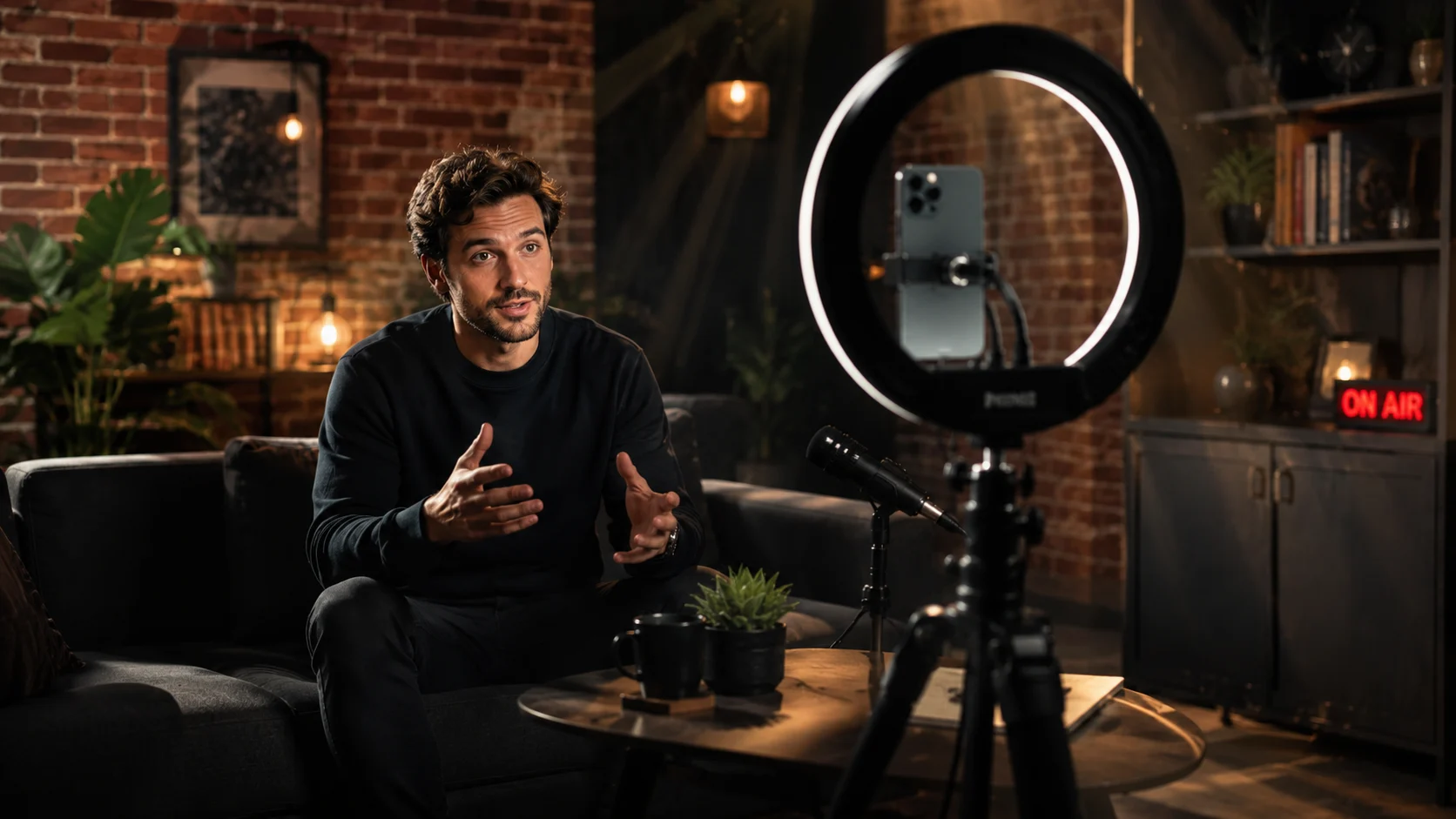
Yes, you can use an iPhone as a teleprompter, and for a lot of creators it is probably the easiest place to start. You already have the screen, camera and processing power in your pocket. Add the right app and a sensible position for the phone and you have most of what a traditional prompting setup is trying to achieve, without constructing a small television studio on the dining table.
The important part is not simply getting words to scroll across the screen. A useful teleprompter needs to make those words easy to follow while keeping your attention as close to the camera lens as possible. Get that right and an iPhone can work brilliantly for short videos, presentations, social content, tutorials and longer scripted sessions.
If you are recording directly with the iPhone, the simplest setup is usually the best one. Keep the script close to the camera, use a comfortable text size and leave enough distance between yourself and the phone that your eyes are not visibly darting across each line.
If another camera is doing the recording, the iPhone can sit immediately above, below or beside the lens. The closer the script is to the camera, the more natural the resulting eye line tends to feel. This is also where a small phone can have an advantage over a large monitor. You are reading from a relatively narrow area rather than scanning across half a desktop display.
It is worth resisting the temptation to squeeze enormous amounts of text onto the screen. Bigger type, shorter visible lines and a comfortable scroll speed usually produce a better delivery than trying to see the next three paragraphs at once. A teleprompter is there to keep you moving through the script, not give you a bird’s-eye view of the entire document.
And if you fluff a line, stop. Nobody watching the finished video knows that take four briefly became take five.
You can. For a few sentences, Notes, Pages or a document on a webpage might be enough. Once the script gets longer, though, the difference between displaying text and actually prompting it becomes much more obvious.
A teleprompter gives you control over the pace of the script, the size and position of the text and the way the content moves while you are speaking. That becomes increasingly useful when you are recording several videos in one session or working through scripts that need consistent delivery.
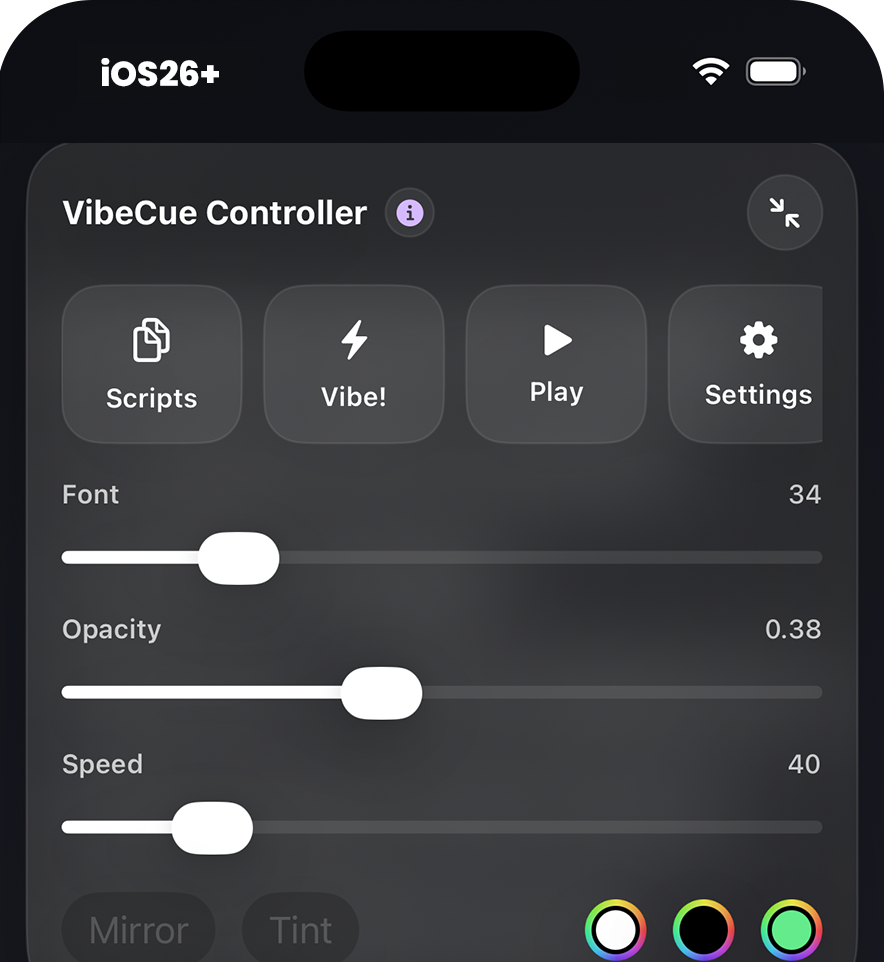
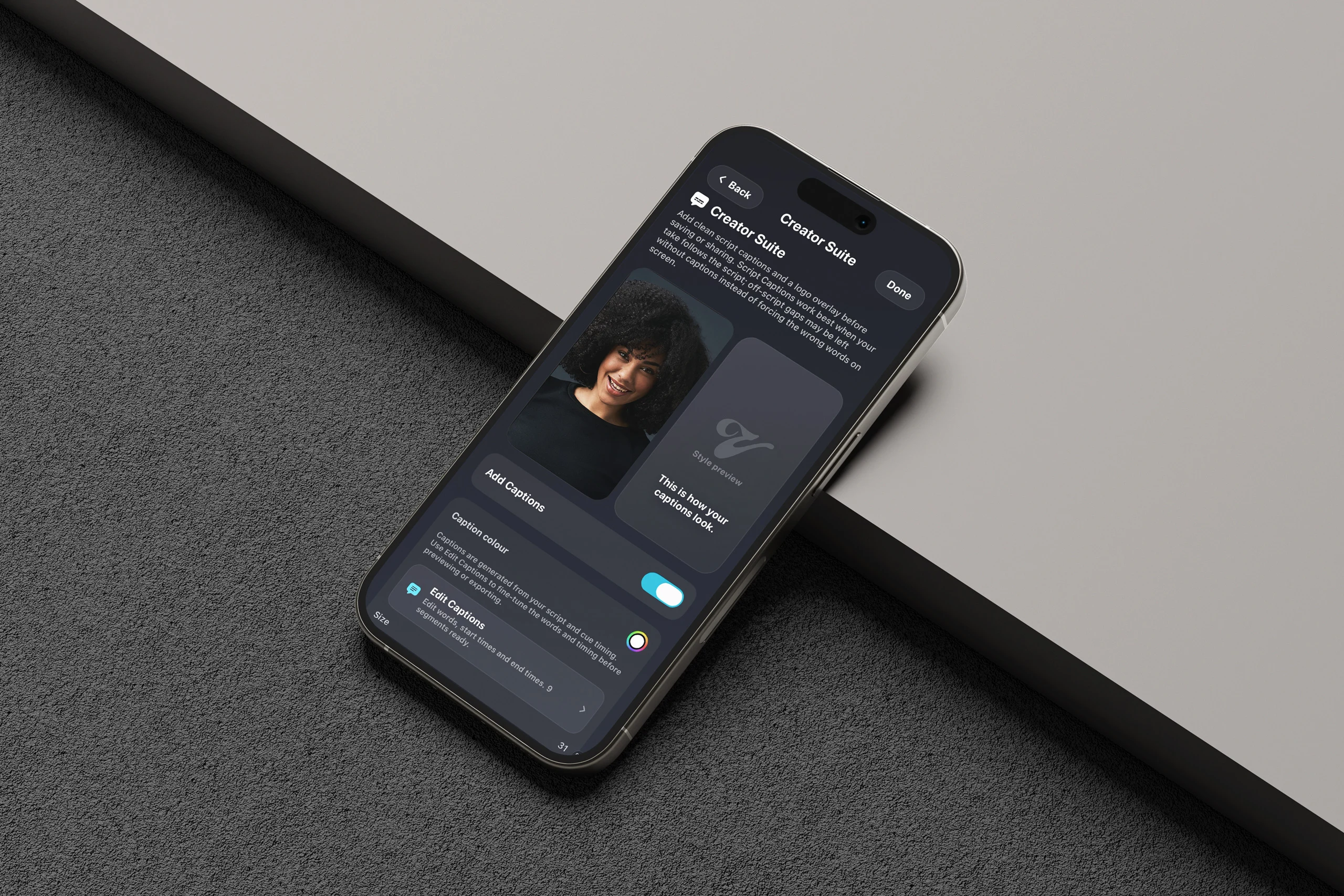
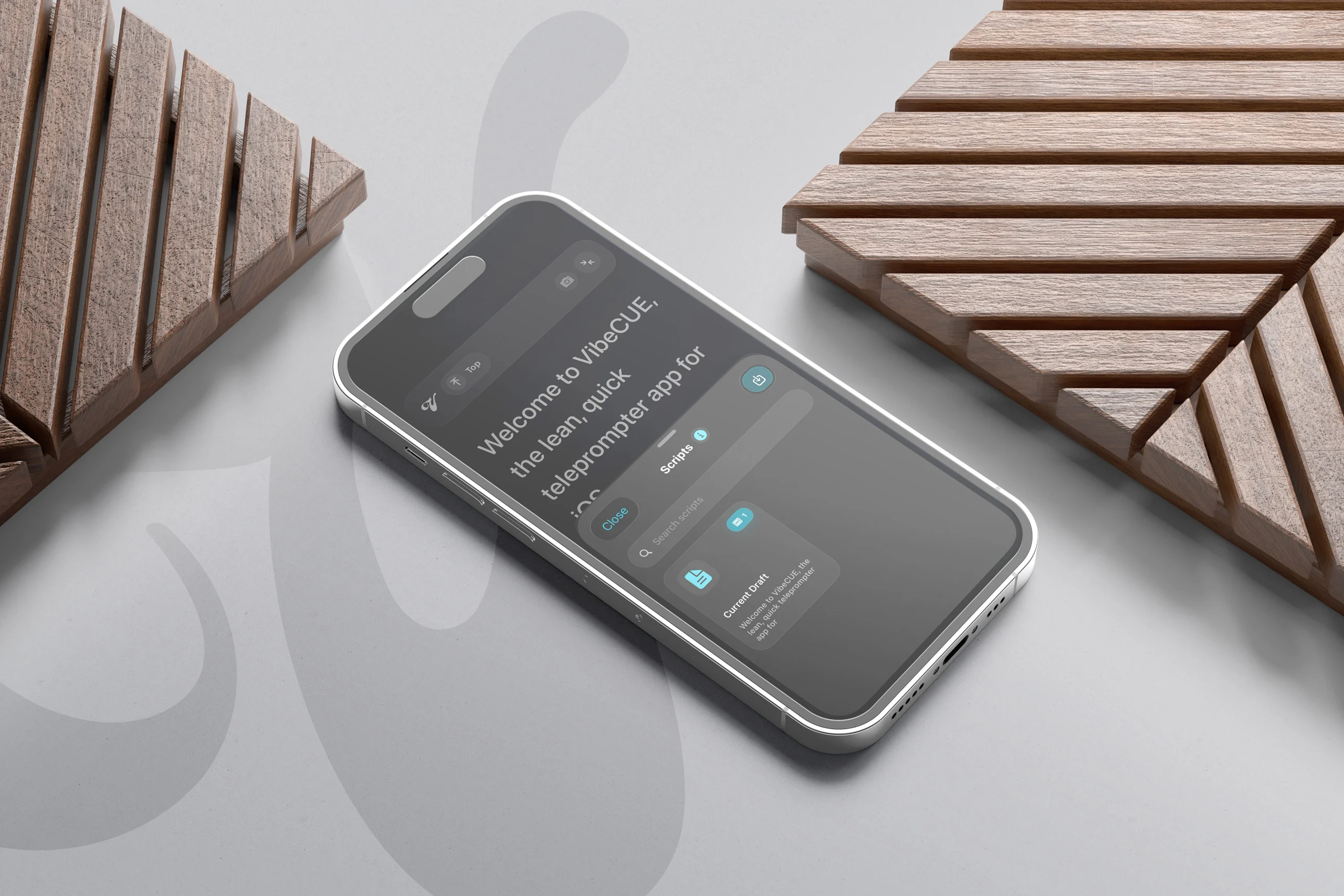
Vibe Cue is designed around that workflow. Rather than treating the script as a document that happens to be moving, it treats it as part of a recording session. Scripts can be prepared and managed in advance, prompting controls stay close at hand and features such as Creator Suite and Takes help keep the work around the recording organised too.
That matters more than it might sound. The actual reading is often the easy part. Keeping track of which version you recorded, which take worked, what needs another pass and where the next script has disappeared to is usually where a quick content session starts growing tentacles.

An iPhone is not always the best screen for the job. If the camera is further away, you are standing rather than sitting, or you simply want larger text, an iPad can give you more reading space while keeping the same basic Vibe Cue workflow.
There is another useful option if your setup revolves around a modern Mac. Compatible iPhone and iPad apps can run directly on Macs with Apple silicon, and Vibe Cue iOS can be used this way too. That means the same Vibe Cue experience can move from iPhone or iPad onto a compatible Mac when a larger desktop screen suits the session better.
It is an important distinction from a dedicated macOS application. The current Vibe Cue iOS app is still the iPhone and iPad experience running through Apple’s support for mobile apps on Apple silicon Macs, rather than a separate native Mac edition. In practice, though, it gives creators another useful way to bring Vibe Cue into a Mac-based recording setup without having to change prompting systems.
We’re also looking beyond that. A dedicated Mac version of Vibe Cue is something we are exploring as the platform develops, with the opportunity to build around desktop workflows rather than simply enlarging what already works on mobile.
There is no single correct teleprompter setup. Sometimes an iPhone mounted beside the camera is all you need. Sometimes an iPad is easier to read from across the room. In a desk-based studio, running Vibe Cue on an Apple silicon Mac may make more sense again.
The useful part is being able to choose the setup around the recording instead of rebuilding the workflow every time the hardware changes.
For quick social content, an iPhone keeps everything compact. For longer sessions, a larger screen can make reading more comfortable. For creators already working inside the Apple ecosystem, moving between those devices can keep the prompting side of the job familiar while the rest of the setup changes around it.
So yes, you can absolutely use an iPhone as a teleprompter. You do not need complicated hardware to get started, and you do not need to turn every recording into a production event. Position the script close to the lens, make it comfortable to read and let the teleprompter handle the part your memory would otherwise be worrying about.
Explore Vibe Cue for iPhone, iPad and compatible Apple silicon Macs, below.